
You have spent months coding, designing, and refining your mobile application. It functions perfectly on your simulator, and the user interface looks sleek. Now, you face the final and often most intimidating hurdle: getting it into the App Store. For many developers, the submission process feels like a black box, but it doesn’t have to be.
The first step to reaching millions of iPhone and iPad users is straightforward: you must buy an iOS Developer Account. However, simply paying the fee is not a guarantee of success. The Apple Developer Program offers more than just a ticket to the store; it provides the tools, analytics, and distribution capabilities necessary to run a successful app business.
This guide will walk you through exactly how to purchase your membership and, more importantly, how to navigate the strict submission guidelines to ensure your app gets approved quickly.
The Strategic Value of the Apple Developer Program
Before we dive into the logistics, it is essential to understand what you are actually purchasing. When you buy iOS Developer Account, you are not just paying for shelf space. You are gaining access to a comprehensive ecosystem designed to protect users and empower creators.
Membership gives you access to App Store Connect, the dashboard where you manage your apps, view sales reports, and respond to user reviews. It also grants you access to TestFlight, a powerful tool for beta testing your app with real users before the public release. Furthermore, membership allows you to integrate advanced Apple technologies like CloudKit, Apple Pay, and Game Center, which can significantly enhance your app’s user experience.
Perhaps most importantly, an active developer account signals legitimacy. Users trust the App Store because Apple vets every publisher. By verifying your identity and maintaining your account, you build immediate trust with your potential audience.
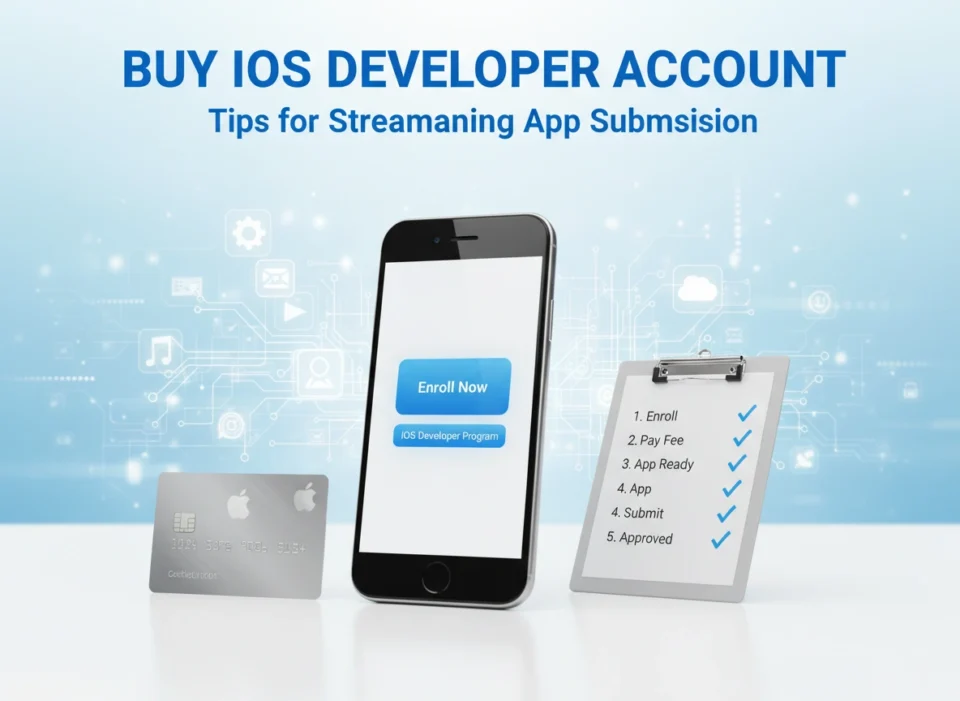
How to Buy an iOS Developer Account: A Step-by-Step Guide
The enrollment process is rigorous by design. Apple prioritizes security and identity verification. Follow these steps to ensure a smooth purchase experience.
1. Prepare Your Apple ID
You need an Apple ID with two-factor authentication enabled. It is often best to create a dedicated Apple ID for your business rather than using a personal one. This keeps your professional assets separate from your personal iCloud data.
2. Choose Your Entity Type
This is the most critical decision during enrollment. You generally have two options:
- Individual/Sole Proprietor: Your personal name will appear as the seller on the App Store. This is faster to set up but offers less privacy.
- Organization: The company name appears as the seller. This requires more verification but is preferred for businesses.
3. Locate Your D-U-N-S Number (Organizations Only)
If you enroll as an organization, you must provide a D-U-N-S number. This is a unique nine-digit identifier assigned by Dun & Bradstreet. Apple uses this to verify your business exists and is a legal entity. If you do not have one, you can request it for free, but do this weeks in advance, as it takes time to process.
4. Start the Enrollment
You can enroll via the web or, often more easily, through the Apple Developer app on an iPhone or iPad. The app simplifies identity verification by using the device’s biometrics and scanning your government-issued ID.
5. Pay the Annual Fee
The cost is typically $99 USD per year. If you are a non-profit organization or an educational institution, you may qualify for a fee waiver, but you must apply for this separately. Once payment is processed, activation usually takes anywhere from a few hours to two business days.
Preparing Your App for Submission
Once your account is active, the real work begins. Apple reviews apps based on the App Store Review Guidelines. Ignoring these is the fastest route to rejection.
Prioritize Design and the Human Interface Guidelines (HIG)
Apple prides itself on design. Your app does not need to look like it was made by Apple, but it must feel at home on an iOS device. Follow the Human Interface Guidelines. Ensure your buttons are large enough to tap (minimum 44×44 points). Support Dark Mode if possible. Make sure text is legible and navigation is intuitive. An app that looks “broken” or amateurish is often rejected for poor user experience.
Ensure Complete Functionality
Never submit an app with “beta” labels, placeholder text (like “Lorem Ipsum”), or non-functional buttons. The review team tests your app on real devices (often iPads, even for iPhone-only apps). If they tap a button and nothing happens, or if the app crashes on launch, it will be rejected. Your submission must be the final, polished version intended for the public.
Legal and Privacy Compliance
You must provide a valid link to a privacy policy. This policy must explicitly state what data you collect, how you use it, and how you store it. If your app uses HealthKit, ARKit, or accesses the user’s location, you must include specific purpose strings in your app’s Info.plist file explaining why you need that access. For example, do not just ask for “Camera Access.” Ask for “Camera Access to allow you to scan QR codes.”
Common Challenges and How to Overcome Them
Even experienced developers face rejections. Knowing the common pitfalls helps you avoid them.
The “Minimum Functionality” Trap (Guideline 4.2)
This is a frequent reason for rejection, especially for apps built by small businesses or event organizers. Apple states that apps should provide more than a “repackaged website.” If your app purely displays your website content without native features (like push notifications, offline mode, or camera integration), Apple may reject it and suggest you use a web app instead.
- Solution: Ensure your app uses native iOS features that a website cannot offer.
Metadata Issues
Your app might be perfect, but your App Store listing might be flawed. Misleading screenshots, referencing competitor apps in your description, or using irrelevant keywords can trigger a rejection.
- Solution: Ensure your screenshots show the app actually in use. Do not use device frames from Android phones. Be honest and clear in your description.
In-App Purchase Confusion
If you sell digital goods (e.g., a premium subscription, game currency, or ebook), you must use Apple’s In-App Purchase system. You cannot link to a website for payment to bypass Apple’s fees. However, if you sell physical goods (e.g., clothes, physical books, Uber rides), you must use a third-party payment provider like Stripe or Apple Pay.
- Solution: Clearly categorize what you are selling and implement the correct payment method.
Best Practices for Streamlining the Process
You want your app approved on the first try. Here is how to speed things up.
Use TestFlight for Internal QA
Do not treat the App Store review team as your QA department. upload your build to TestFlight first. Invite team members or friends to test it. They will find bugs that you have become “snowblind” to. Fixing these glitches before submission saves you the 24-48 hour cycle of rejection and resubmission.
Leverage the “Review Notes” Field
In App Store Connect, there is a section called “App Review Information.” This is your direct line of communication with the human reviewer. Do not leave it blank.
- Demo Accounts: If your app requires a login, you must provide a working username and password. The reviewer will not create an account.
- Hardware Setup: If your app requires specific hardware (like a smart lightbulb), provide a video demo showing the app working with the device, as the reviewer won’t have the hardware.
- Explanations: If a feature looks obscure, explain how to find and test it here.
Validate Before Uploading
Xcode, Apple’s development environment, has a validation tool. Run this “Validate App” function before you upload your build to App Store Connect. It checks for missing icons, incorrect provisioning profiles, and architecture issues. It acts as a spell-check for your code’s structure.
Time Your Release
Reviews typically take 24 to 48 hours. However, large updates to iOS or the holiday season can slow this down. Do not plan a marketing launch for the same day you submit. Submit at least a week in advance, and set your release usage to “Manual Release.” This way, once approved, you can flip the switch when your marketing campaign is ready.
Conclusion
Deciding to buy an iOS Developer Account is the beginning of an exciting journey into the world of mobile software. While the $99 investment grants you access, your attention to detail grants you success. The submission process serves as a quality filter, ensuring that the App Store remains a safe and reliable marketplace for users.
By preparing your design thoroughly, understanding the difference between digital and physical goods, and communicating clearly with the review team, you can avoid the frustration of rejection. Treat the submission process as a core part of your development cycle, not an afterthought. With these tips in hand, you are ready to navigate the process smoothly and get your app into the hands of users worldwide.
